How to customize the Shopify checkout without Shopify Plus
Shopify keeps its checkout locked down unless you're on Plus. Here's exactly what you can change on any plan, what you can't, and how to get a fully custom checkout anyway.
The short version
- On every Shopify plan you can change the checkout's branding (logo, colors, fonts) and add app blocks to the Thank you and Order status pages.
- Adding your own content inside the information, shipping and payment steps is reserved for Shopify Plus.
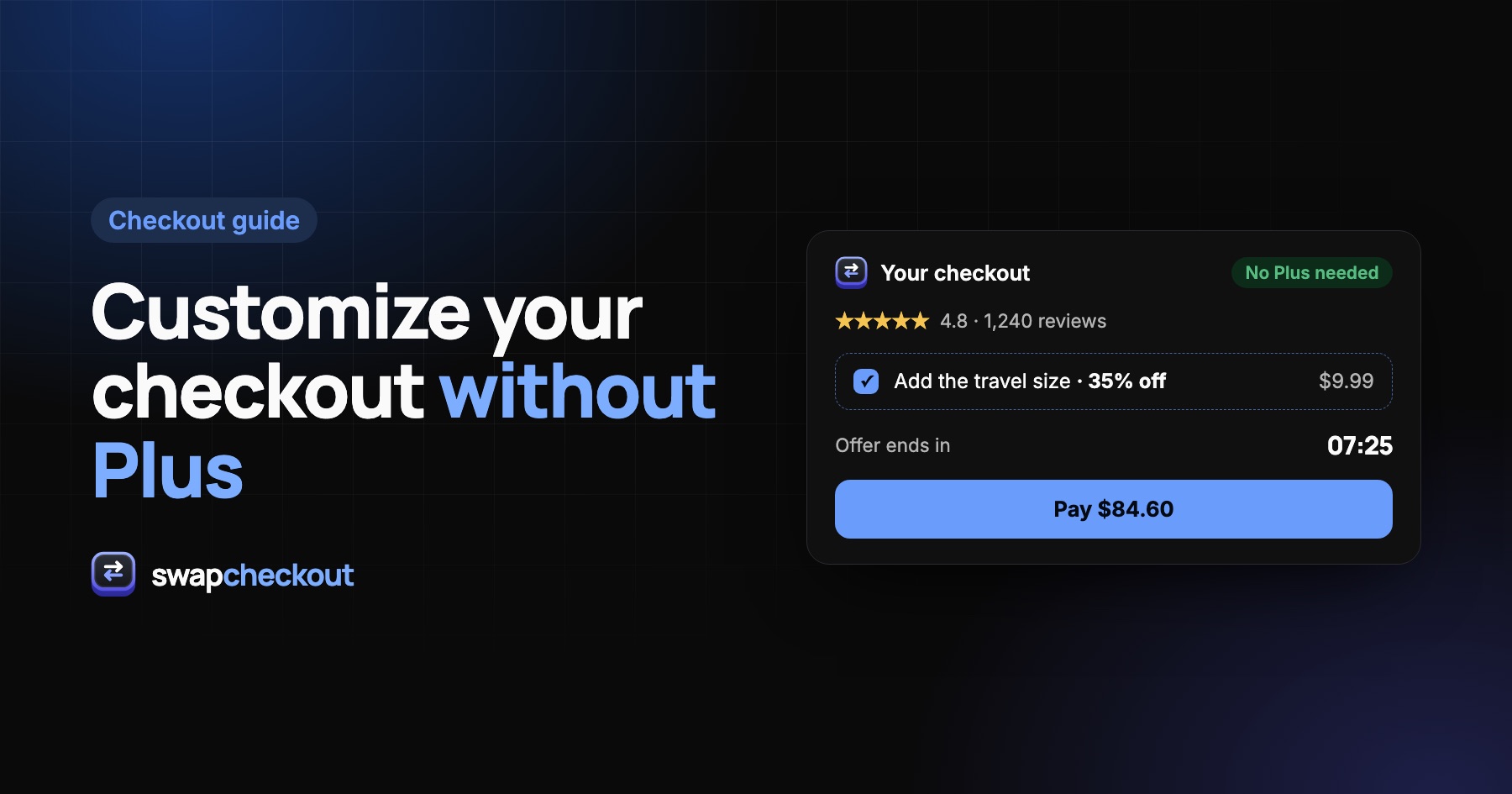
- Without Plus, the way to get a fully custom checkout is to replace the checkout step with your own page, and sync paid orders back to Shopify.
Why customize the checkout at all?
The checkout is the page with the most buying intent on your whole store, and the one you usually control the least. Merchants want to change it to:
- Raise average order value with an order bump or a complementary product.
- Reassure buyers with reviews, a guarantee and an FAQ right where they hesitate.
- Keep the brand consistent from the product page to the payment.
- Reduce drop-off by answering the questions that make people leave. More on that in Shopify checkout abandonment: 10 fixes.
What you can change on any Shopify plan
At the time of writing, every plan gets:
- The checkout editor: logo, colors, fonts, buttons and background images, under Settings › Checkout › Customize.
- Checkout settings: which fields are required, whether customers need an account, tipping, marketing consent.
- Thank you and Order status pages: app blocks for things like surveys, upsells after purchase or support links.
- Discounts and payment methods: what's offered, through your settings and apps.
What's reserved for Shopify Plus
Shopify Plus adds checkout extensibility inside the checkout steps themselves: custom content blocks on the information, shipping and payment steps, and deeper logic for things like hiding or reordering payment and delivery options. Plus is priced for high-volume brands, so for most stores it's not worth upgrading only for the checkout.
Older guides mention editing checkout.liquid. That file was only ever available on Plus, and Shopify has retired it in favor of checkout extensibility, so those tutorials no longer apply.
Your options without Plus
1. Push the editor as far as it goes
Matching your brand's colors and fonts, removing optional fields and enabling express wallets is free and takes an afternoon. It won't let you add an order bump or reviews inside the payment step, but it's the right first step.
2. Move persuasion before the checkout
Put reviews, guarantees, shipping times and bundles on the product page and in the cart, where you have full control. Many cart apps add upsells and progress bars to the cart drawer.
3. Replace the checkout step
For full control, send shoppers from the cart to your own checkout page instead of Shopify's. That's what Swapcheckout does: you design the page in a no-code builder, payment goes through your own Whop account, and every paid order is created back in Shopify Admin so fulfillment doesn't change. It works on any Shopify plan, because the checkout is replaced rather than edited inside Shopify.
What to put on a custom checkout
If you do control the page, these are the blocks worth testing first:
- One order bump: a small, related add-on, unchecked by default or clearly labeled.
- Social proof: your real rating and a few short reviews.
- A guarantee: your actual return or refund policy, in one line.
- A short FAQ: shipping time, returns, and how to contact you.
- A timer, only if it's true: tied to a real offer that really ends. Fake urgency costs you trust and can break consumer protection rules.
Keep the payment form itself short. Every block you add should answer a hesitation, not create a new one.
Comparison
| Checkout editor | Shopify Plus | Replace the checkout | |
|---|---|---|---|
| Branding | Yes | Yes | Yes |
| Blocks inside payment step | No | Yes | Yes |
| Order bump, reviews, FAQ | No | With apps or code | Yes, no code |
| Who processes payment | Your Shopify setup | Your Shopify setup | Your own Whop account |
| Orders in Shopify Admin | Yes | Yes | Yes, synced |
Want to see a custom checkout before deciding? Open the live checkout preview.
The questions merchants ask.
No. It was only ever available on Plus, and Shopify has retired it in favor of checkout extensibility.
Not inside the checkout steps. You can offer upsells in the cart, or on the Thank you page with an app. To add an order bump in the payment step itself, you need Plus or a replaced checkout.
Your storefront, theme and apps stay the same. With Swapcheckout, paid orders are still created in Shopify Admin, so fulfillment and reporting keep working.
Shop Pay is part of Shopify's own checkout, so it's not available on a replaced checkout. Your checkout offers the payment methods available through your Whop account instead.