How to accept payments through Whop on your Shopify store
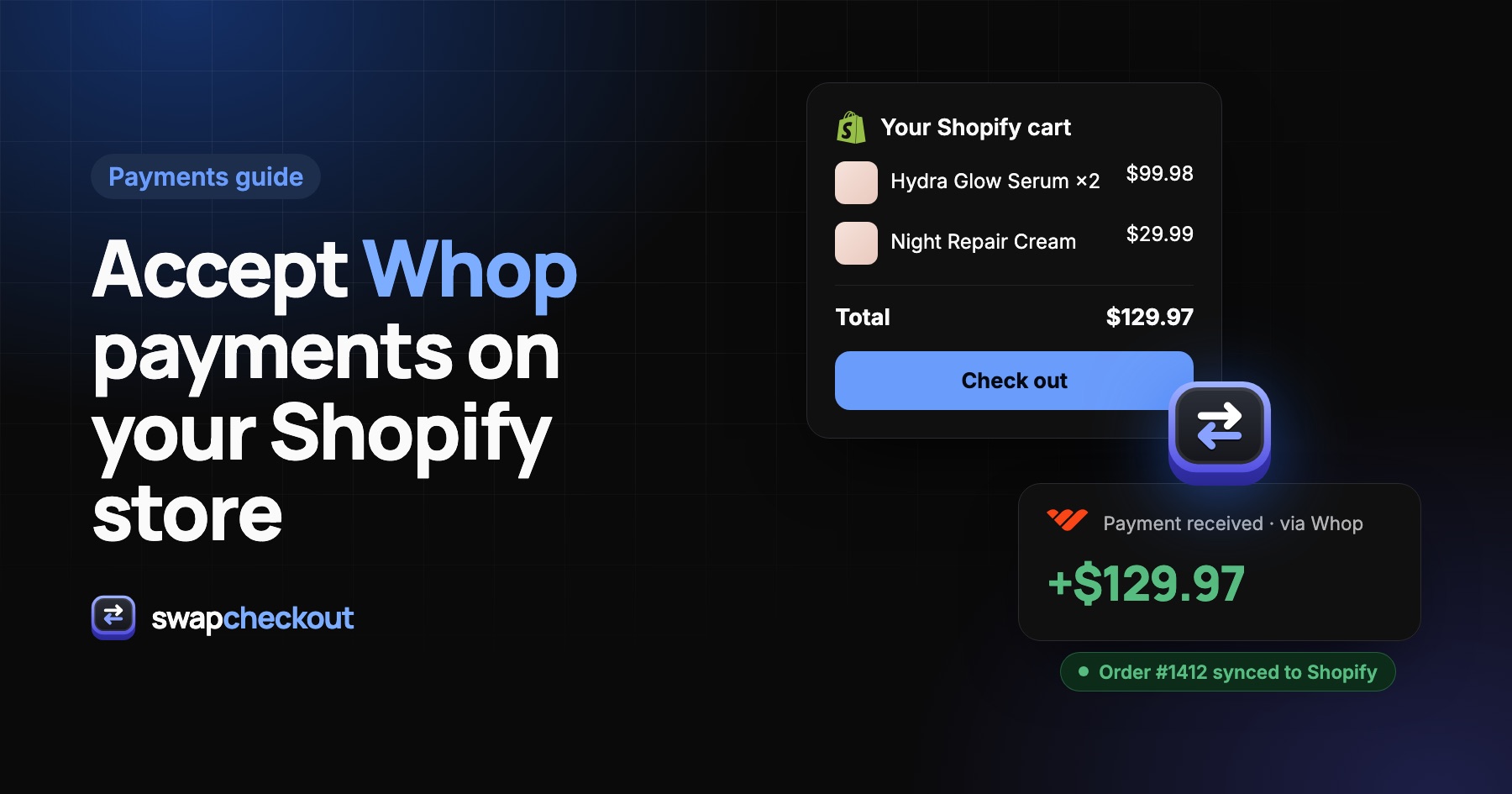
Shopify doesn't list Whop as a payment provider. Here are the three ways to take Whop payments while keeping your Shopify store, what each one costs you, and how to set up the one that keeps your orders in Shopify.
The short version
- Whop isn't one of the payment providers you can switch on in Shopify's payment settings, so there's no built-in way to connect the two.
- You have three real options: Whop checkout links on your product pages, moving your whole store to Whop, or replacing only Shopify's checkout step with one that charges through Whop.
- Only the third keeps your cart, your theme and your paid orders inside Shopify Admin for fulfillment.
Why merchants want Whop payments on a Shopify store
Most merchants who look into this already like their Shopify storefront. The theme converts, the product pages rank, the apps are set up. What they want to change is where the money goes after a customer pays.
The usual reasons:
- Faster access to sales. A payment taken through Whop shows up in your Whop balance within minutes, instead of waiting through a multi-day payout cycle.
- One place for recurring revenue. Merchants who already sell memberships or digital products on Whop want physical-product subscriptions in the same account.
- Separating the store from the payments. Keeping the storefront on Shopify and the payments on a separate account means one side can change without rebuilding the other.
The catch is that Shopify's checkout is built around its own payment settings. You can't simply paste a Whop API key into Shopify and call it done.
What Shopify lets you change, and what it doesn't
Two things are worth knowing before you pick an approach:
- Payment providers are a fixed list. Under Settings › Payments, Shopify offers its own processor plus the third-party providers it has approved for your region. At the time of writing, Whop isn't one of them.
- The checkout itself is locked down. Deep checkout customization is reserved for Shopify Plus. On other plans you can change colors and logos, not the structure of the page or who processes the payment.
So every working setup does the same thing in a different way: it sends the shopper to a page that charges through Whop instead of through Shopify's checkout.
Option 1: Whop checkout links on your product pages
The simplest version. You create each product in Whop, copy its checkout link, and replace (or add next to) the Add to cart button on the matching Shopify product page.
How to set it up
- Create the product in your Whop dashboard with the same price as on Shopify.
- Copy the product's checkout link.
- In your Shopify theme editor, add a button on the product template that points to that link.
- Repeat for every product, and every variant that has its own price.
Where it falls short
- No cart. Each link sells one product. A shopper who wants three items pays three times.
- Orders don't reach Shopify. Nothing is created in Shopify Admin, so fulfillment, inventory and customer history have to be handled by hand or with extra tooling.
- Two catalogs to keep in sync. Every price change or new product has to be made twice.
- A visible jump. The shopper leaves your branded store for a different-looking page right at the moment of paying.
It's fine for a store with one or two products and a handful of orders a day. Past that, the manual work adds up quickly.
Option 2: Move the whole store to Whop
If payments are the main reason you're on Shopify, you could sell directly from a Whop store instead. Everything lives in one account and there's nothing to connect.
The cost is everything you've built on Shopify: your theme, your apps, your product page URLs and the search rankings attached to them, your reviews, your email flows. For most established stores, that's a rebuild, not a switch.
Option 3: Replace only the checkout step
This is the approach Swapcheckout takes. Your storefront and cart stay exactly as they are on Shopify. When a shopper clicks Check out, they land on your own checkout page instead of Shopify's, pay through your connected Whop account, and the paid order is created back in Shopify Admin automatically.
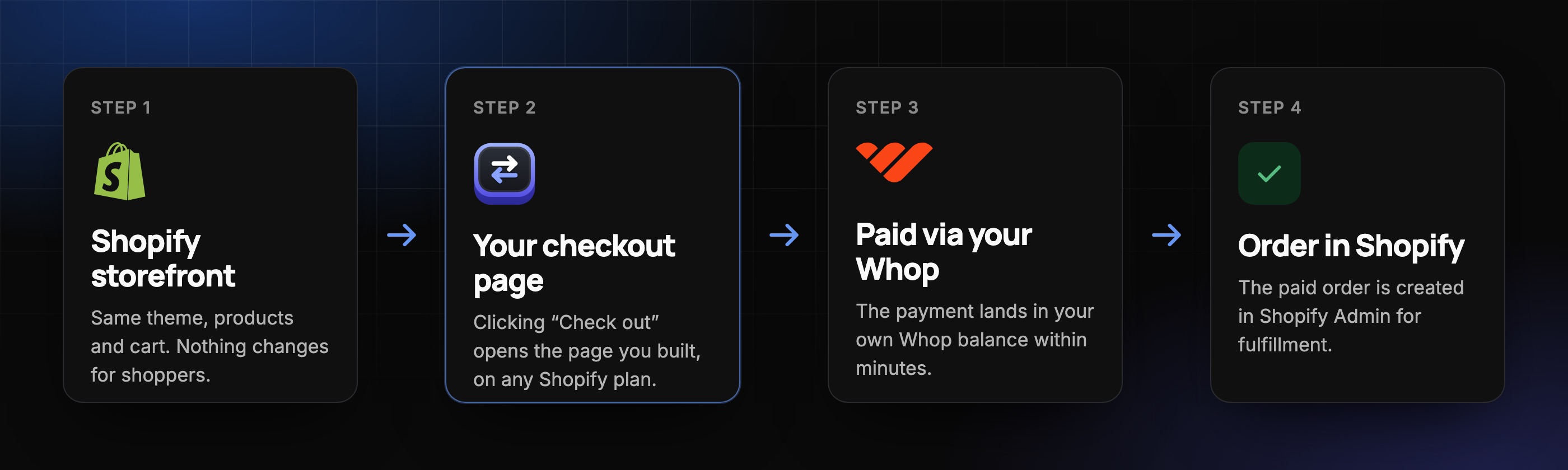
- The full cart carries over: every product, variant and quantity in one payment.
- Fulfillment doesn't change. Paid orders, one-time or recurring, show up in Shopify like any other order, so your shipping apps and workflows keep working.
- You control the checkout page, without Shopify Plus: order bumps, timers, reviews, an FAQ, your own domain.
The trade-offs: it's a paid tool (a flat $89 a month, with no fee per order, on top of Whop's own processing fees), and you need to connect two accounts once during setup.
Side-by-side comparison
| Whop links | Move to Whop | Replace the checkout | |
|---|---|---|---|
| Multi-item cart | No | Depends on your Whop store | Yes |
| Orders created in Shopify | No | No (you leave Shopify) | Yes, automatically |
| Keeps your theme and apps | Yes | No | Yes |
| Branded checkout page | No | Whop's design | Yes, no-code builder |
| Setup effort | Per product | Full rebuild | One-time connection |
| Extra cost | None | None | $89/month, no per-order fee |
Whop's own processing fees apply in all three cases.
How to set it up with Swapcheckout, step by step
- Get your Whop account ready to take payments. Whop runs its own verification before you can accept money, and its terms apply to what you sell. Do this first.
- Connect your Shopify store. The dashboard walks you through creating an app for your store in Shopify's developer dashboard and pasting its credentials. This is what lets paid orders be written back into Shopify.
- Connect your Whop account. Paste a Whop API key so payments are processed by, and land in, your own Whop balance. We never hold your customers' funds.
- Build your checkout page. Start from the default layout and add what fits your store: order bumps, a countdown, reviews, a guarantee, an FAQ.
- Go live. One script on your theme sends shoppers to your new checkout when they click Check out. Nothing else on the storefront changes.
- Place a test order. Check that the payment appears in your Whop balance and that the order appears in Shopify Admin with the right items.
Want to see the shopper side first? Try the live checkout preview, no account needed.
Where the money goes, and when
Each payment lands in your Whop balance within minutes of the sale. From there, payouts to your bank follow the schedule you've set in Whop. Payout timing, holds and reserves are decided by Whop under its own terms, not by Swapcheckout, which never touches the funds.
Refunds and disputes go through Whop too. You can trigger a refund from the Swapcheckout dashboard in one click, and it's processed on the original Whop payment.
What about subscriptions?
Recurring orders work the same way: the shopper subscribes at checkout, each renewal is charged through Whop, and each one creates a new order in Shopify for fulfillment. Subscribe & save, free trials, a customer portal and automatic payment retries are built in. See how subscriptions work.
Before you start
Whop's and Shopify's terms both apply to your accounts. Check that what you sell is accepted by Whop, and review Shopify's terms for your own store. Swapcheckout is independent software and isn't affiliated with Whop or Shopify.
The questions merchants ask.
Not at the time of writing. Whop isn't in the list of third-party providers Shopify offers under Settings › Payments, which is why every working setup sends the shopper to a separate checkout page.
With Whop checkout links, no: you'd create them by hand. When you replace the checkout step with Swapcheckout, every paid order, one-time or recurring, is created in Shopify Admin automatically.
No. The checkout step is replaced rather than customized inside Shopify, so it works on any Shopify plan.
Payments land in your Whop balance within minutes. Payouts to your bank then follow your Whop payout schedule.
No. Your theme, product pages and cart stay the same. Only the page that opens after Check out is different, and you design it yourself.